SOP — Ordering (servers)
Taking and sending orders on the floor. Bottom tabs: Tables · Orders · Menu · Me.
Take a new order
On the Tables tab, tap + New Table.
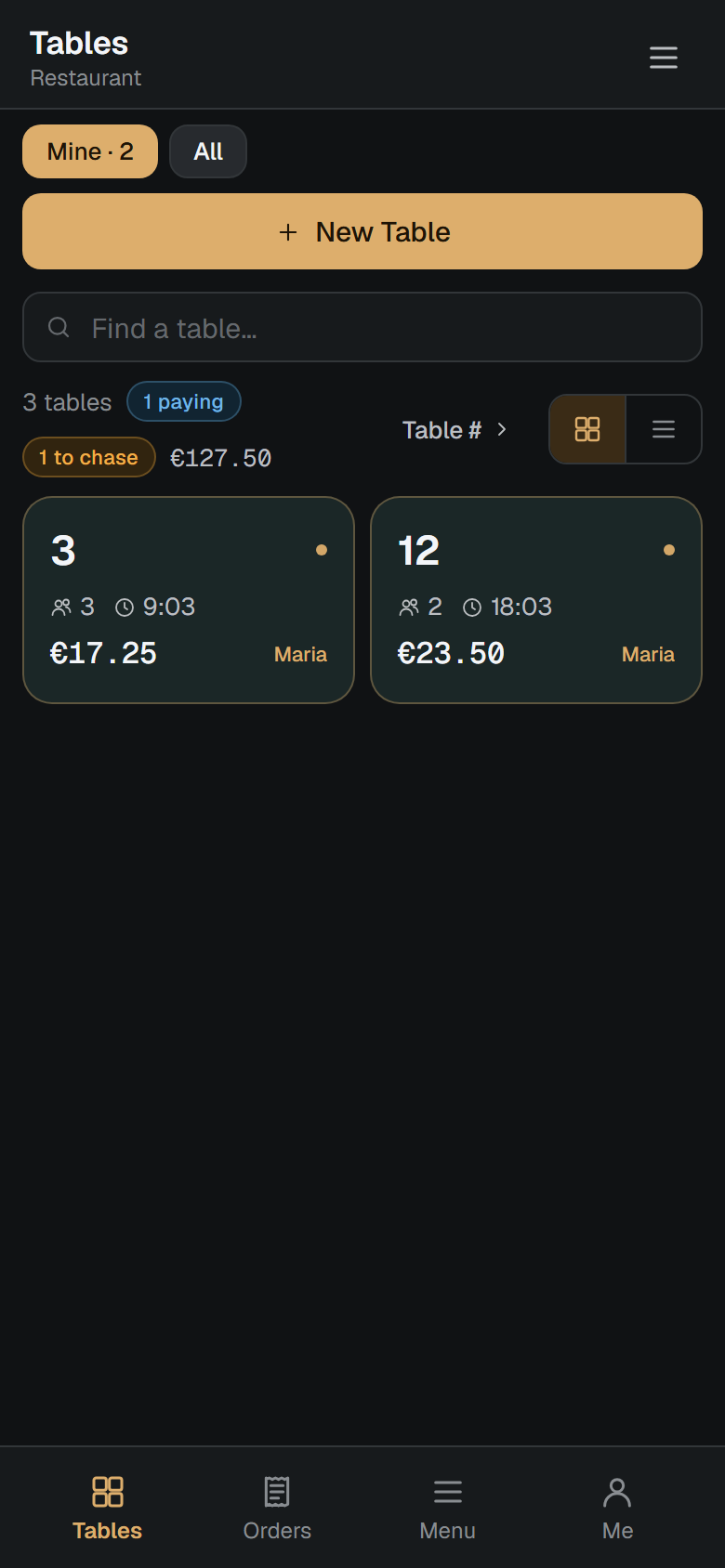
Enter the table number and number of guests, then tap Open.
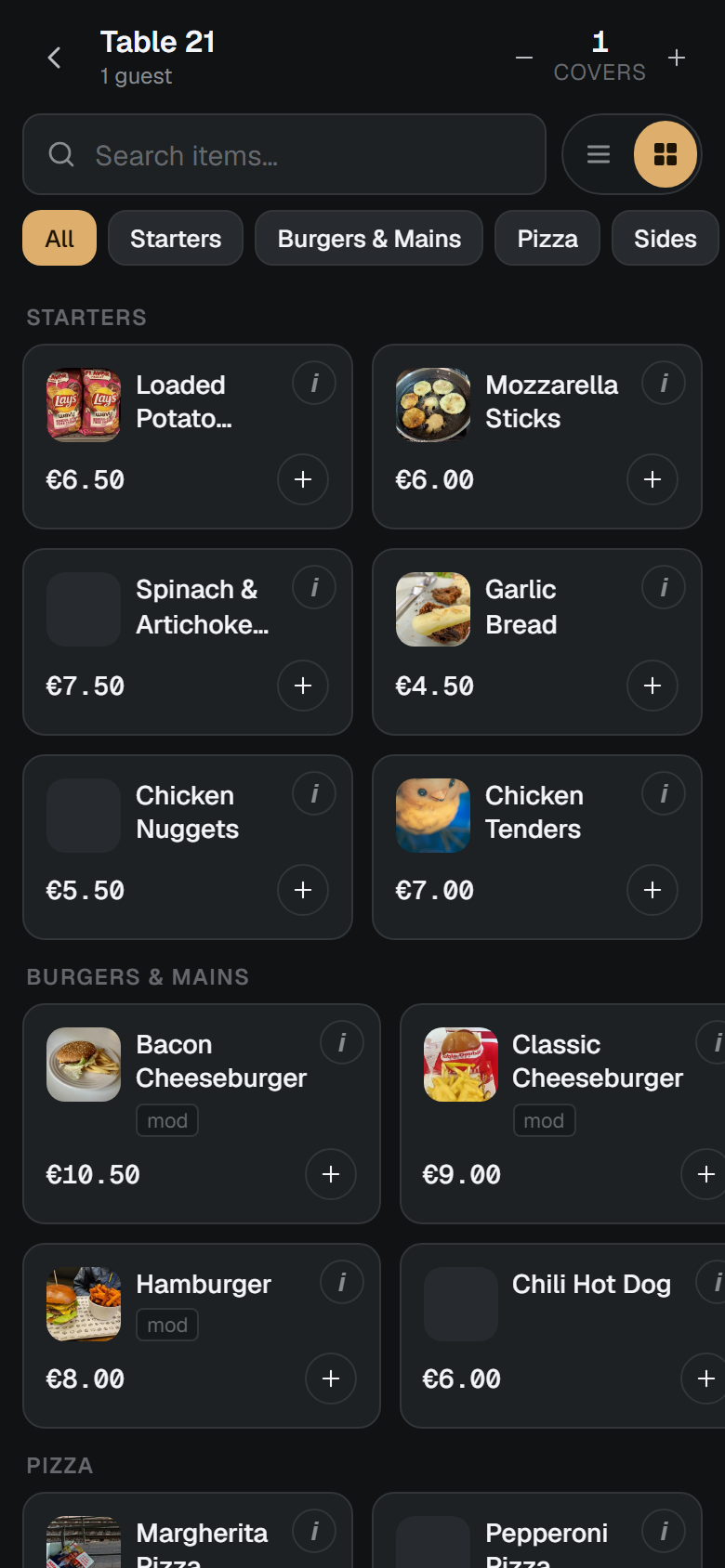
The menu opens. Find items by tapping a category or using Search (search covers the whole menu). Tap an item to add it.
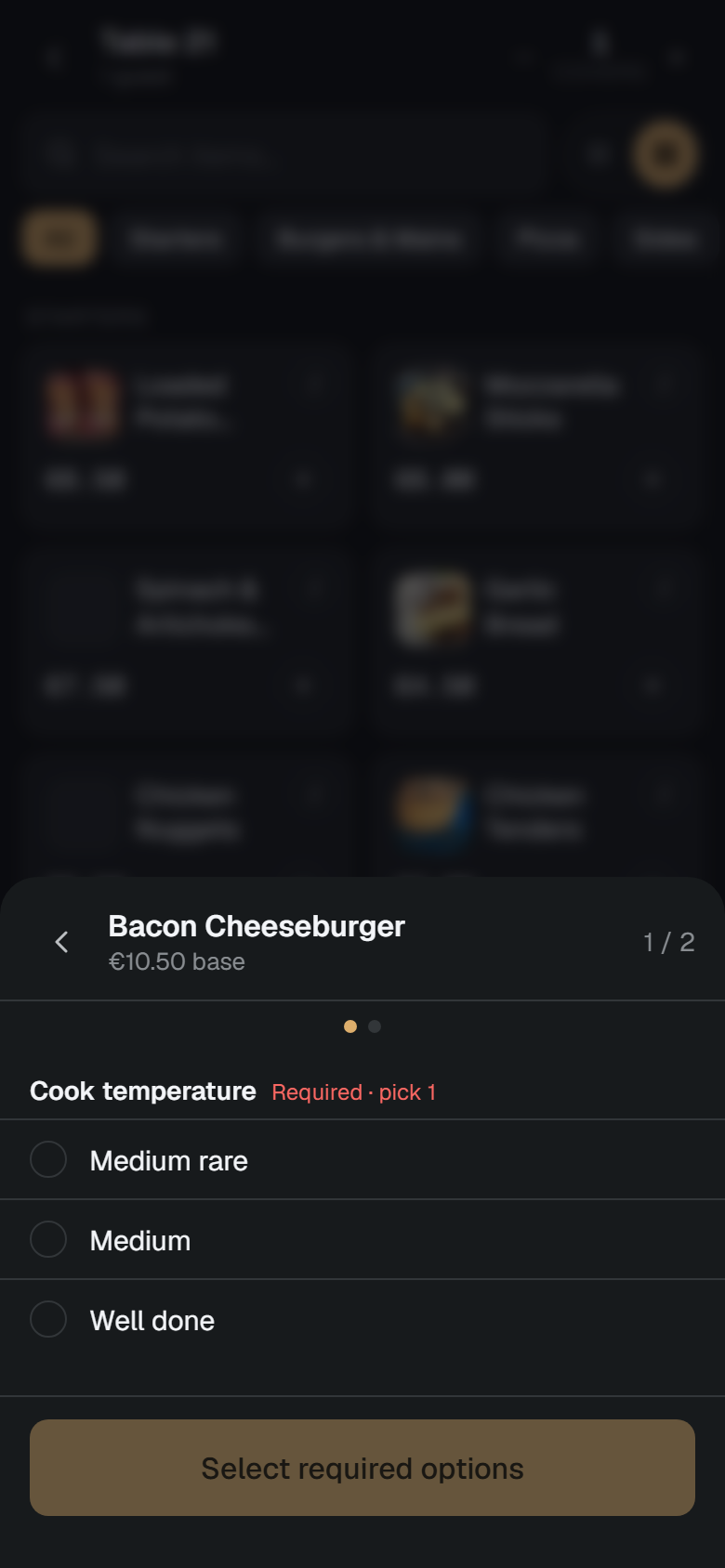
If an item has choices, a modifier sheet opens. Pick the required options (e.g. cook temperature), then tap Add to order.
Tip: long-press a simple item to add several at once (3, 6, 12…).
Tap the cart bar at the bottom to review the order line by line — read it back to the table here.
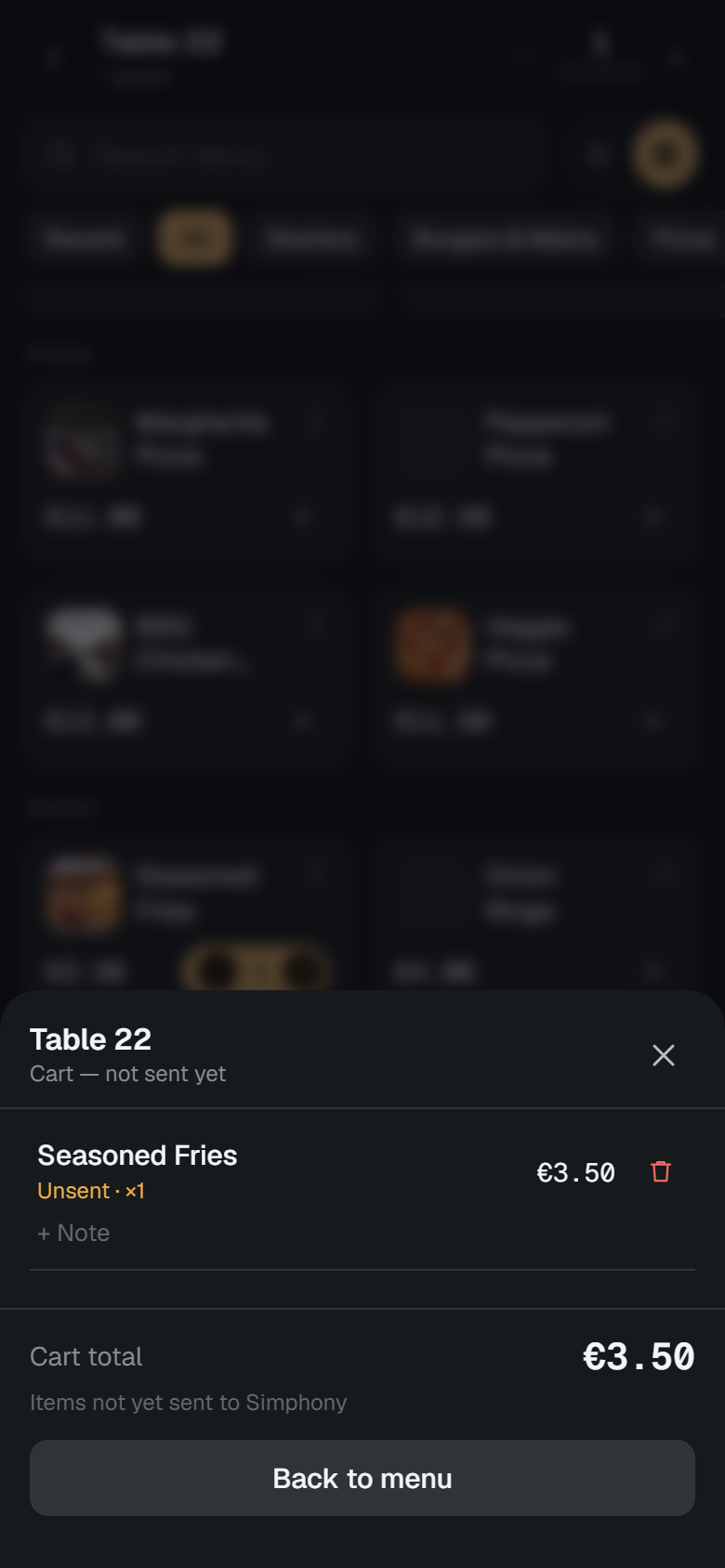
Tap Send. You'll see "Sent to kitchen." The order now shows on the Kitchen screen.
Add more to a table (a new round)
On Tables, tap the table.
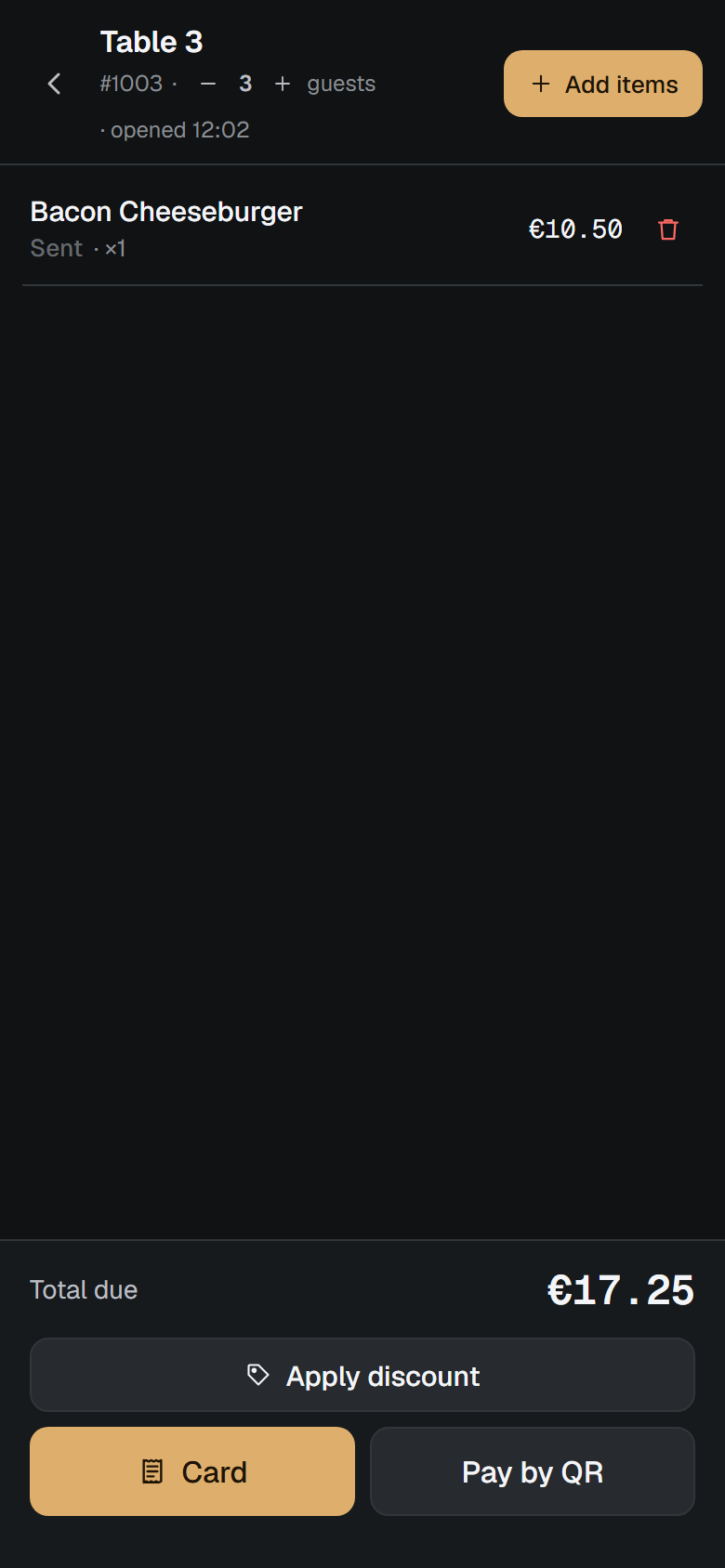
Tap Add items, choose the items, and Send — they go through as a new round on the same check. The Ordered tab lets you one-tap repeat what's already on the table.
Browse the menu / check allergens
The Menu tab shows the full menu with photos, dietary chips, and a red ⚠ allergen warning. Tap ⓘ on any item for its full details.
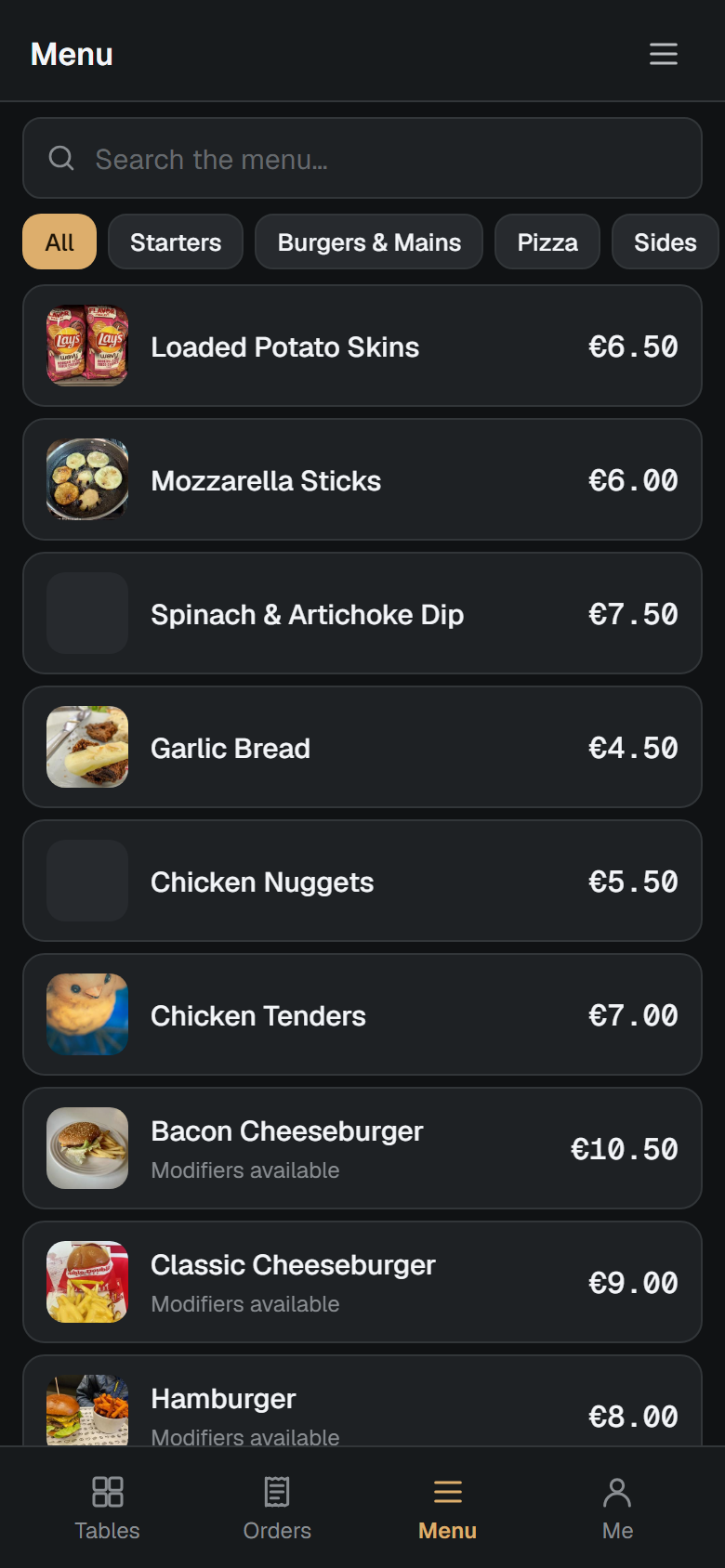
Items that are out of stock show greyed out; a 86'd today button lists everything currently unavailable.
Track your orders & voids
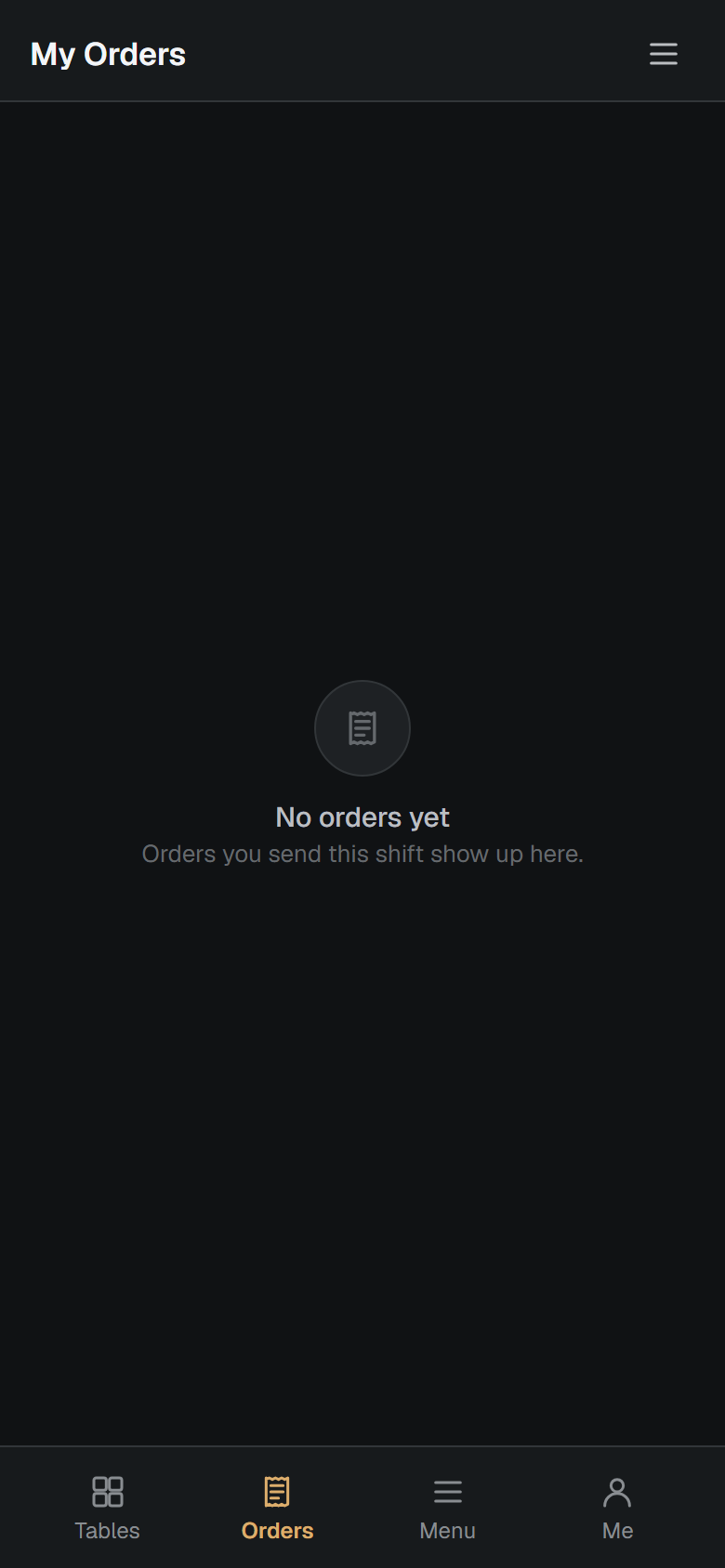
The Orders tab shows every order you've sent this shift and its status (sent, queued, ready).
To void or discount an item, request it from the check — a manager approves it and you're notified of the outcome.
If the connection drops
Keep working — orders are saved on the device ("Saved offline · sends when online"). When you're back online, tap Repost to Simphony on the banner and the queue sends in order. Nothing is lost.