SOP — Inventory (floor / retail)
The scan-first surface for managing items. Sign-in is by name, so every change is recorded against the person who made it. Inventory is online-only — changes talk to Simphony live.
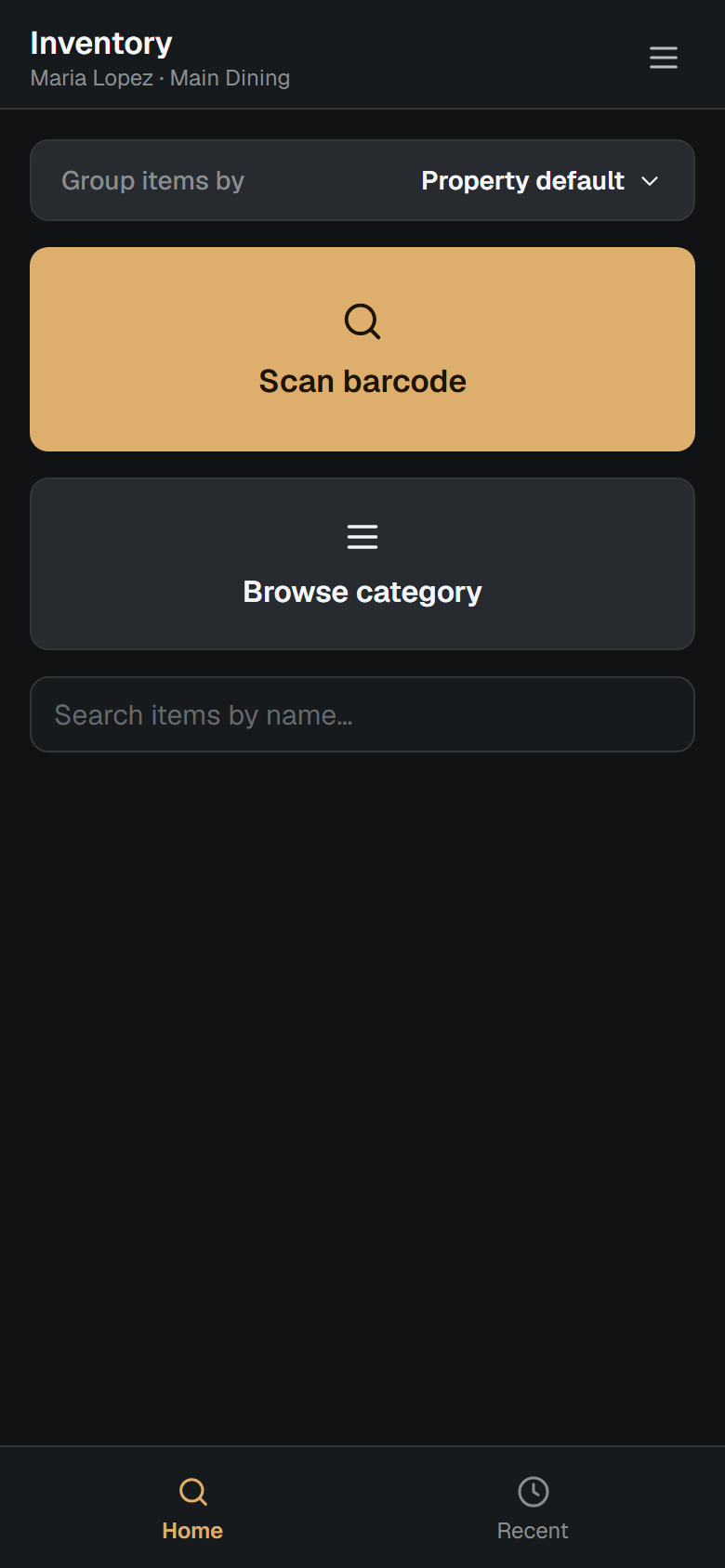
Find an item
By scanning — tap Scan barcode and point the camera at the product barcode. RestAssist looks it up by its real Simphony barcode.
📷 The camera scan happens on a real device, so it isn't shown here.
By name — type in the search box.
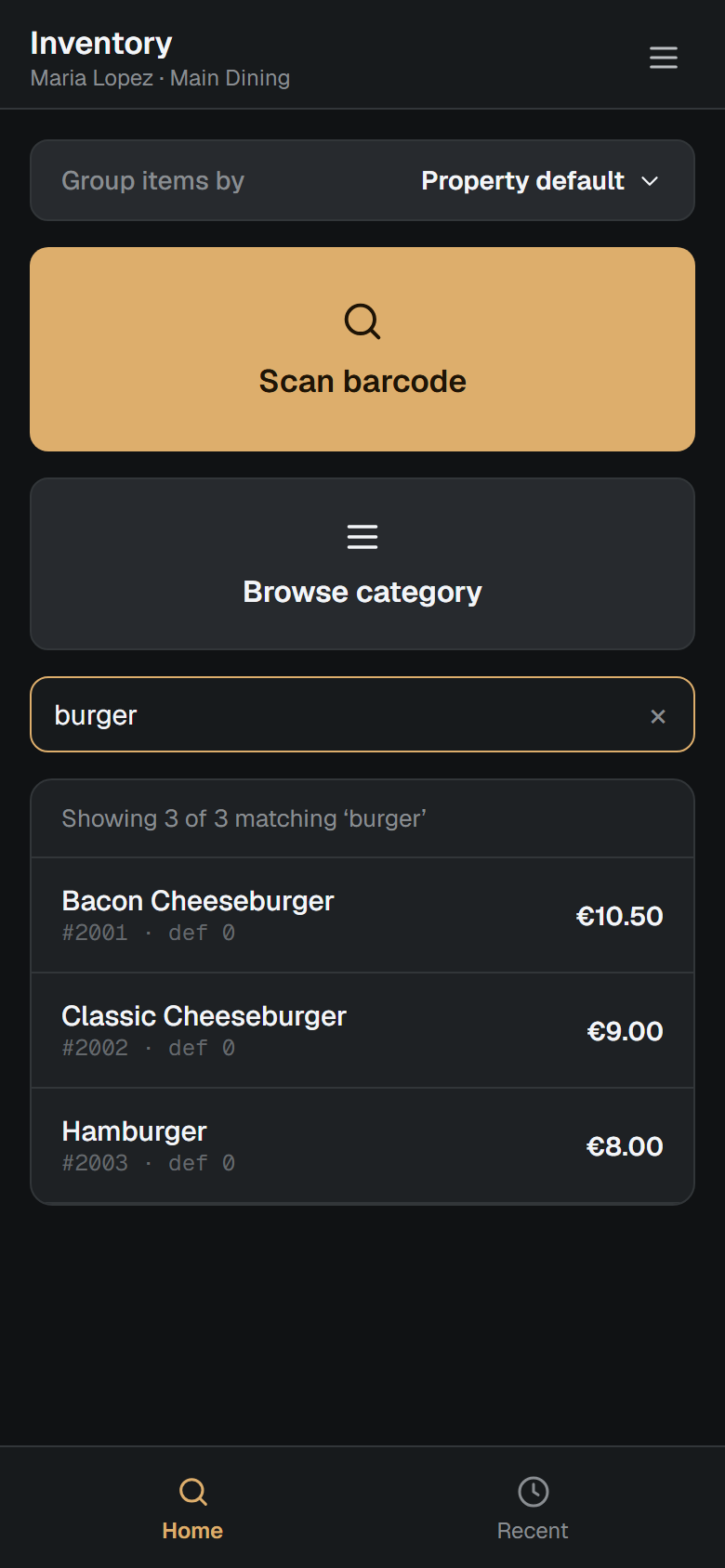
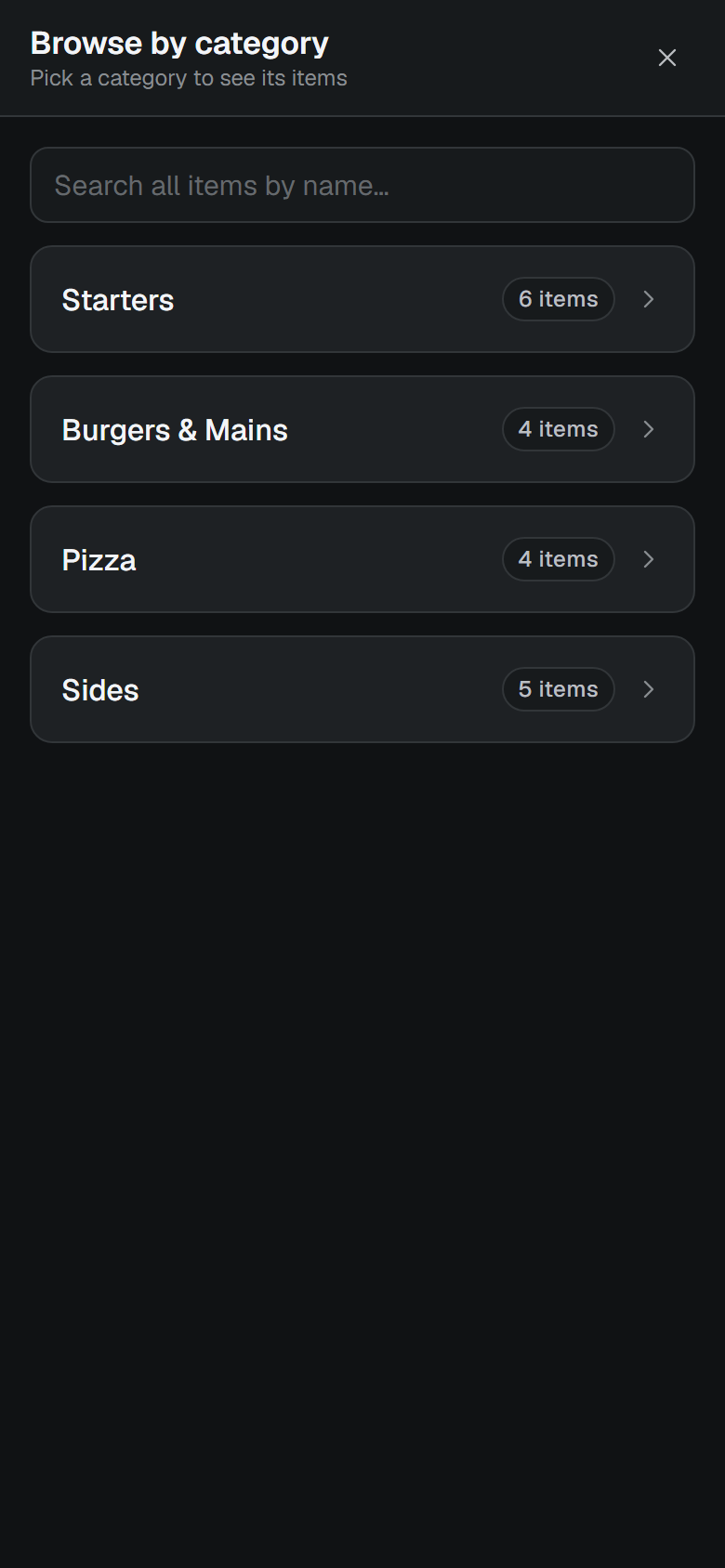
By category — tap Browse category.
Change an item's price (reprice)
Find the item (scan, search, or browse) and tap it. The action sheet opens.
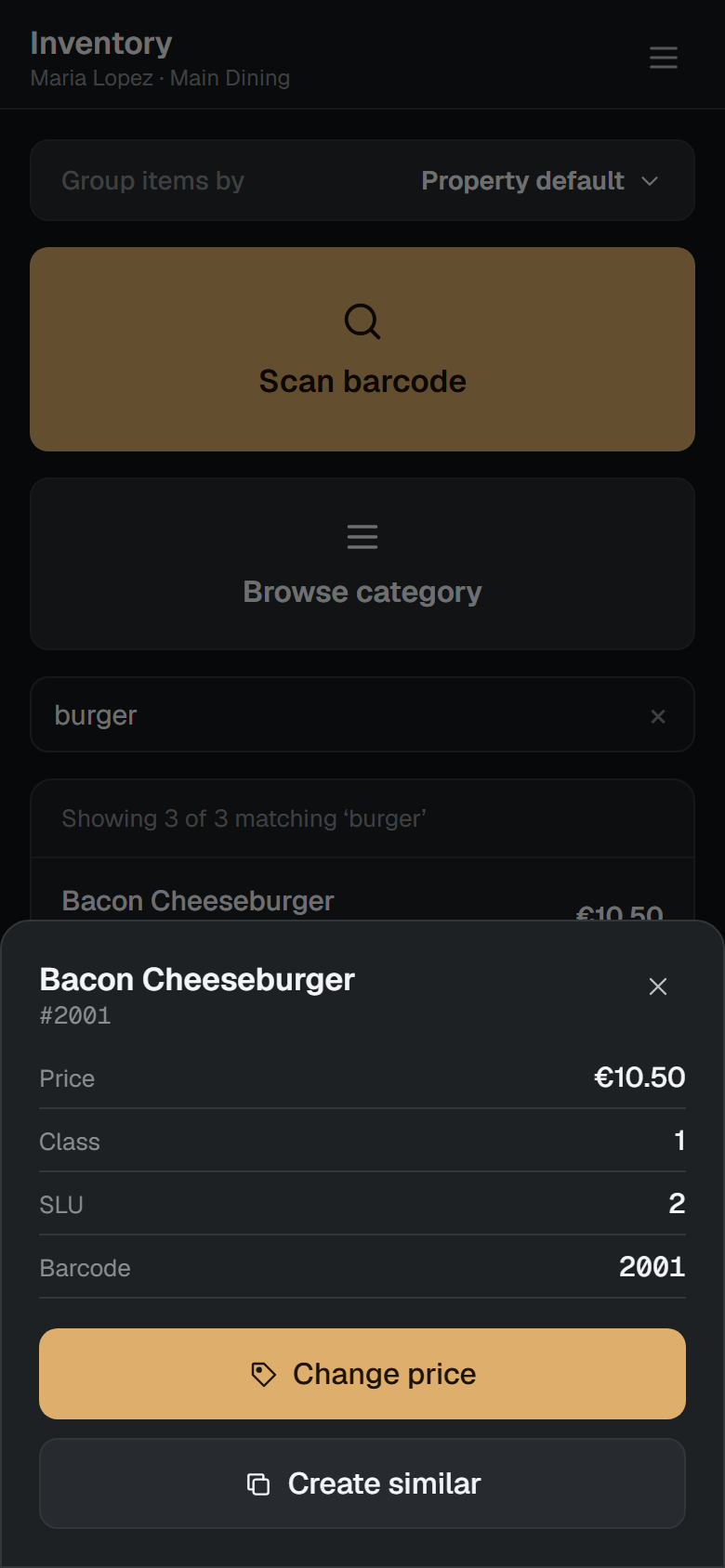
Tap Reprice, enter the new price, and tap Add to list.
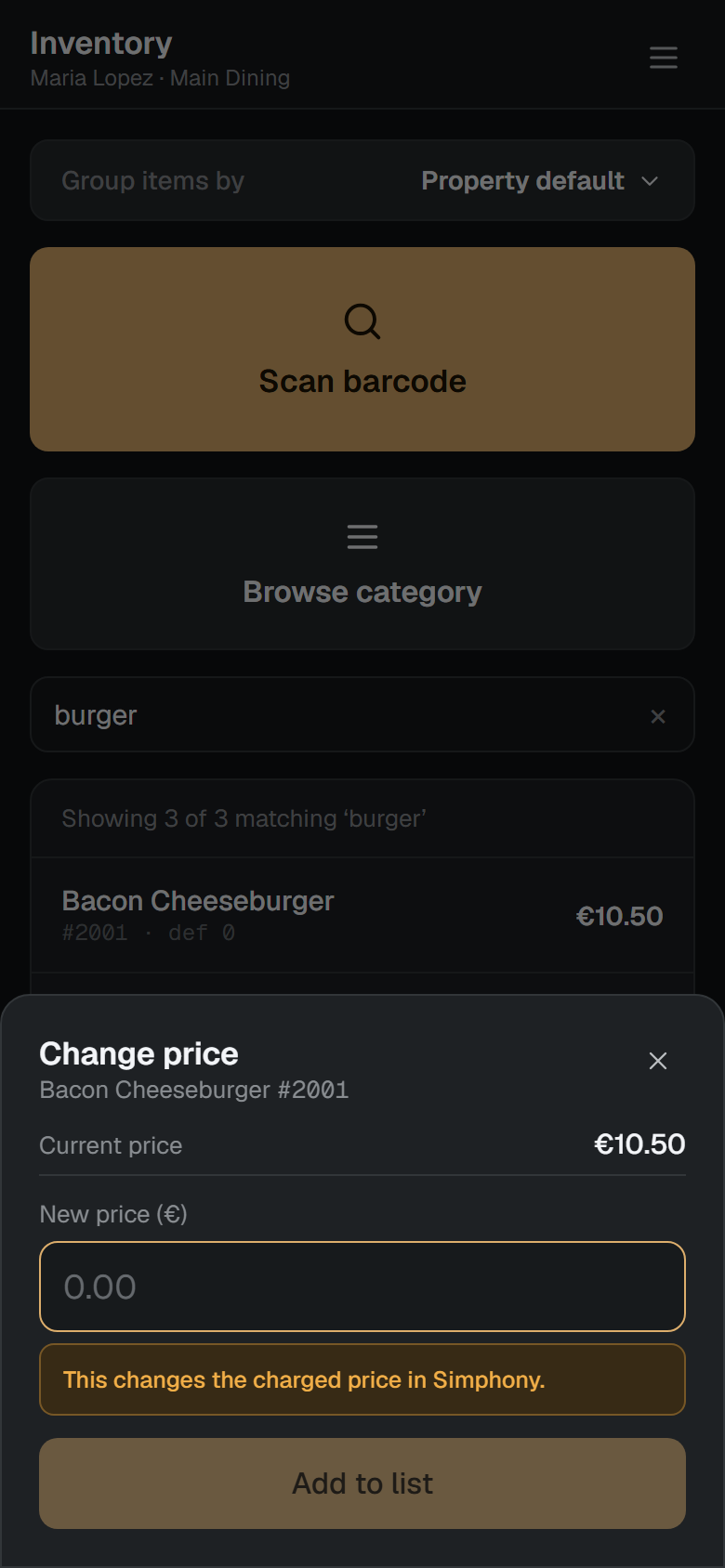
It's staged in your list. Repeat for other items, then tap Review list → submit to push them all to Simphony at once.
Repricing changes the charged price in Simphony — double-check before submitting.
Create a new item
- From a scanned/searched item or a category, choose Create similar — this copies the settings (category/recipe) from an existing item.
- Give the new item a name, price, and optionally a barcode. A scan that finds nothing offers to create the item with that barcode already filled in.
- Stage it in the list with any others, then Review list → submit.
New items are created with a real scannable barcode automatically, and are findable immediately — by name and by scanning — with no catalogue refresh needed.
When something fails
Each item in a submitted job shows a step strip — master → definition → price → barcode — with a ✓ / ✗ per step and the exact error on any step that failed. Tap Retry failed to continue: it finishes a part-created item rather than duplicating it. A job that was cut off shows Interrupted and asks for confirmation before retrying.